
Data loss is a universal problem—whether you’re using a Mac or a Windows PC. But while the end goal is the same (recover lost files), the tools and processes vary between operating systems. Understanding how data recovery differs on macOS and Windows can help you choose the right strategy and tools when disaster strikes.
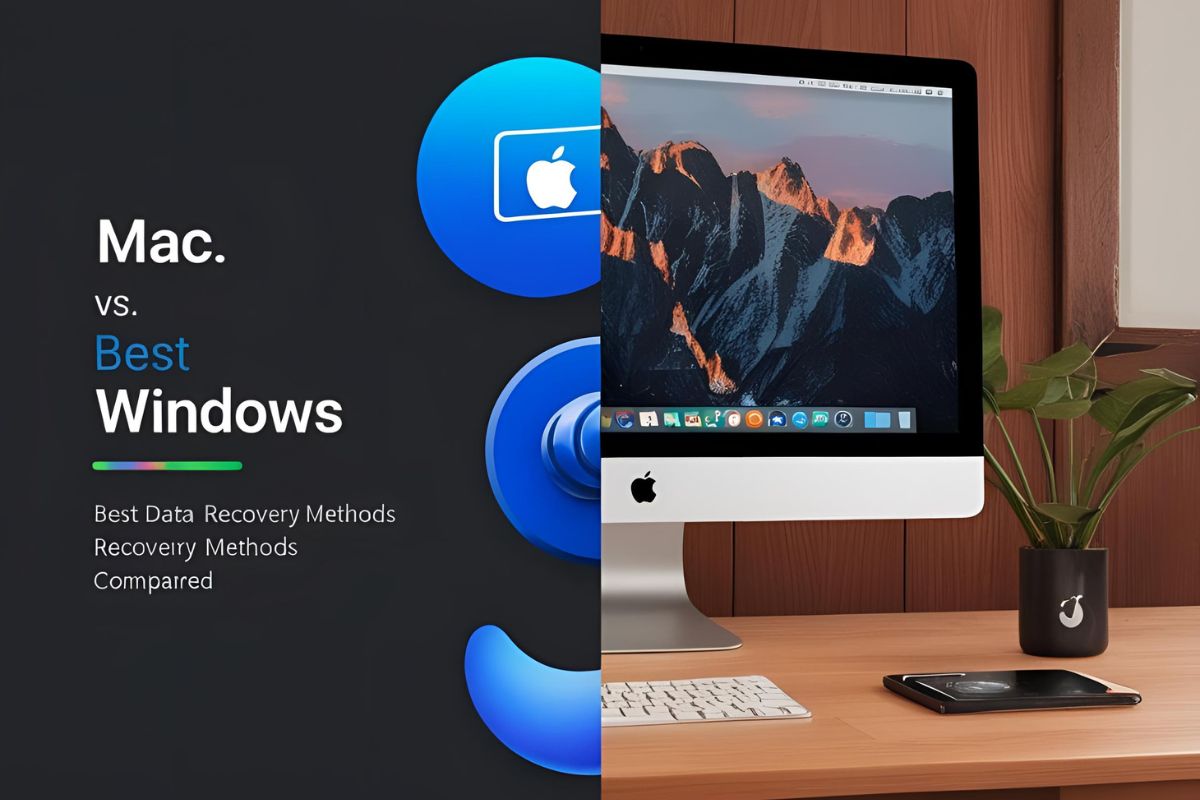
This article compares the best data recovery methods for Mac and Windows, from built-in solutions to third-party software and professional services.
Common Data Loss Scenarios Across Both Platforms
Before comparing tools, it’s worth noting that the causes of data loss are generally the same:
- Accidental file deletion
- Formatting errors
- File system corruption
- Malware attacks
- Power outages or improper shutdowns
- Drive partition issues
- Hardware failure (internal or external drives)
While the causes are similar, the built-in tools and third-party options differ significantly between macOS and Windows.
Built-In Data Recovery Options
Windows: Built-In Tools
- Recycle Bin
- Deleted files are stored here temporarily. Easy to restore if not permanently deleted.
- File History
- If enabled, File History creates backup versions of files which can be restored.
- Requires pre-configuration and an external drive or network location.
- System Restore & Previous Versions
- For recovering older versions of files or restoring system stability.
- Limited in scope—doesn’t restore user files deleted from non-system folders.
macOS: Built-In Tools
- Trash
- Similar to Recycle Bin. Files remain until manually emptied.
- Time Machine
- Apple’s built-in backup solution.
- Allows recovery of individual files, folders, or entire system from incremental snapshots.
- Requires external storage for backups.
- Versions
- Built into some apps like Pages and Numbers.
- Allows you to revert to earlier file versions within the app.
Verdict:
- macOS has the edge in built-in backup capabilities due to Time Machine’s reliability and ease of use.
- Windows offers useful tools, but they’re more fragmented and require manual setup.
Third-Party Data Recovery Software
Both platforms offer robust third-party solutions, but not all tools are cross-platform or equally effective.
Best for Windows:
- EaseUS Data Recovery Wizard
- Supports FAT, exFAT, NTFS; user-friendly interface; quick scan & deep scan modes.
- Recuva (by CCleaner)
- Free and lightweight; ideal for recently deleted files.
- Disk Drill for Windows
- Intuitive UI; offers recovery on formatted, corrupted, or RAW drives.
Best for macOS:
- Stellar Data Recovery for Mac
- Supports APFS, HFS+, exFAT, NTFS; strong for external drives and formatted partitions.
- Disk Drill for Mac
- Comprehensive tool for recovering from internal SSDs, external drives, USBs.
- PhotoRec (Open Source)
- Command-line based; supports both Mac and Windows file systems; strong performance, but less user-friendly.
Key Differences:
- File System Support: Windows tools often focus on NTFS/FAT systems, while macOS tools handle APFS/HFS+ formats.
- TRIM on SSDs: On newer Macs, TRIM makes recovery from internal SSDs nearly impossible due to instant block erasure. Windows systems may still offer a recovery window depending on hardware and configuration.
Professional Data Recovery Services
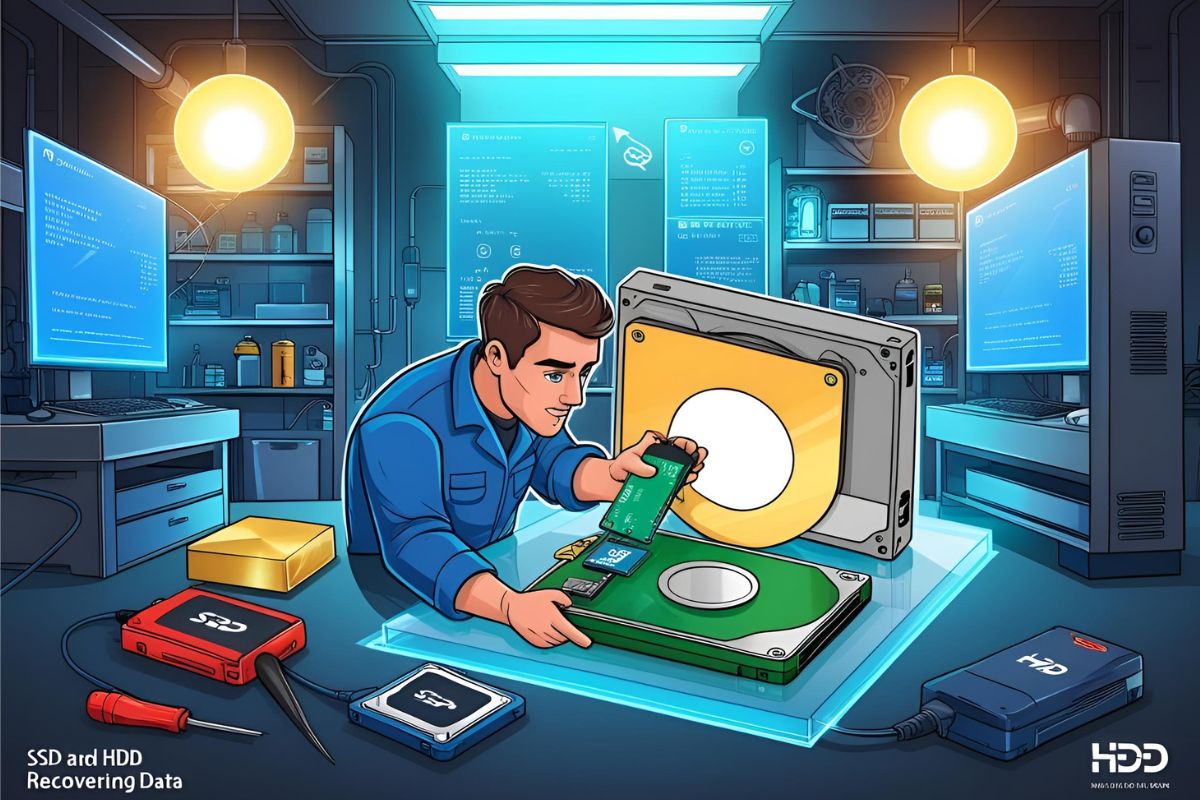
In cases of physical failure, professional help is required. Fortunately, most major recovery labs support both Mac and Windows drives.
What They Handle:
- Dead hard drives
- Clicking or beeping sounds
- Water/fire damage
- Firmware corruption
- Severe file system damage
Top Recovery Providers:
- DriveSavers
- Ontrack
- Secure Data Recovery
- Cyber Centaurs
They offer:
- Free diagnostics
- Cleanroom recovery environments
- Support for all drive types (HDD, SSD, external)
- macOS and Windows file system expertise
💡 Tip: If your Mac uses T2 or M1/M2 security chips, professional recovery may require Apple’s cooperation. Windows drives typically don’t face such manufacturer-level encryption barriers.
Pricing & Recovery Success
| Factor | Windows | macOS |
|---|---|---|
| Software Cost | $0–$99 per license | $0–$149 per license |
| Built-in Tools | Recycle Bin, File History | Time Machine, Versions |
| Recovery from SSD | Moderate to good | Poor (due to TRIM) |
| File System Support | NTFS, exFAT, FAT32 | APFS, HFS+, exFAT |
| Encrypted Drive Support | Limited (BitLocker) | Limited (FileVault, T2/M1) |
| Physical Recovery | Available | More complex on newer Macs |
Conclusion: Which OS Is Better for Data Recovery?
There’s no clear winner—it depends on the situation.
- Windows users benefit from a wide range of free and low-cost recovery tools and generally better odds when recovering from SSDs (if TRIM is not enabled).
- Mac users have an excellent built-in backup system (Time Machine), but internal SSD recovery is very limited due to Apple’s hardware encryption and TRIM.
Final Recommendation:
- Use regular backups (Time Machine for Mac, File History or third-party tools for Windows).
- Invest in reliable recovery software for logical errors.
- Seek professional services when dealing with physical or hardware-level issues.